Examples to Run a Task
To demonstrate the power of Web
Hera, here are two examples of different ways to run ftlist from the Mission Category
HEATOOLS (or from pre-populated General category).
One most important factor
requires special attention is the Current
Working Directory. Current working directory is the directory that the tool
will be working under. Its location and contents are been displayed in User Hera Data Directory Panel. It is
important to remember that once the tool has started, user cannot change current
working directory until the tool is finished.
1.
First
example is to run a tool against a data file resides in user’s Hera data
directory.
 Select a tool
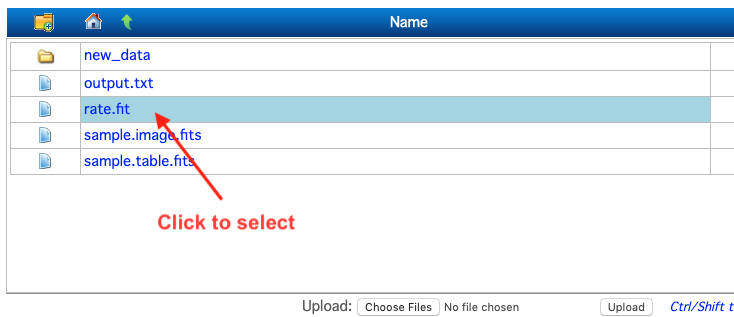
Select an input file
Click
on User Current Working Directory to select an input file.
Click
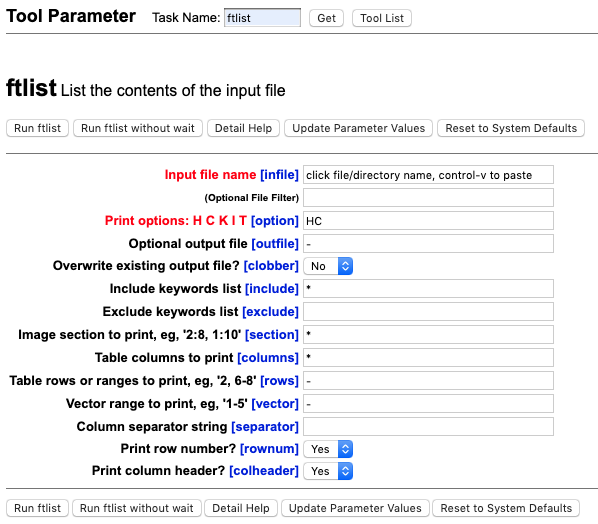
the inside the entry box, and use Control-v to paste the selection (OSX: use Command-v.)
|
|
|
|
|
|
||
|
Control-v (Command-v on OSX) to paste |
||
|
|


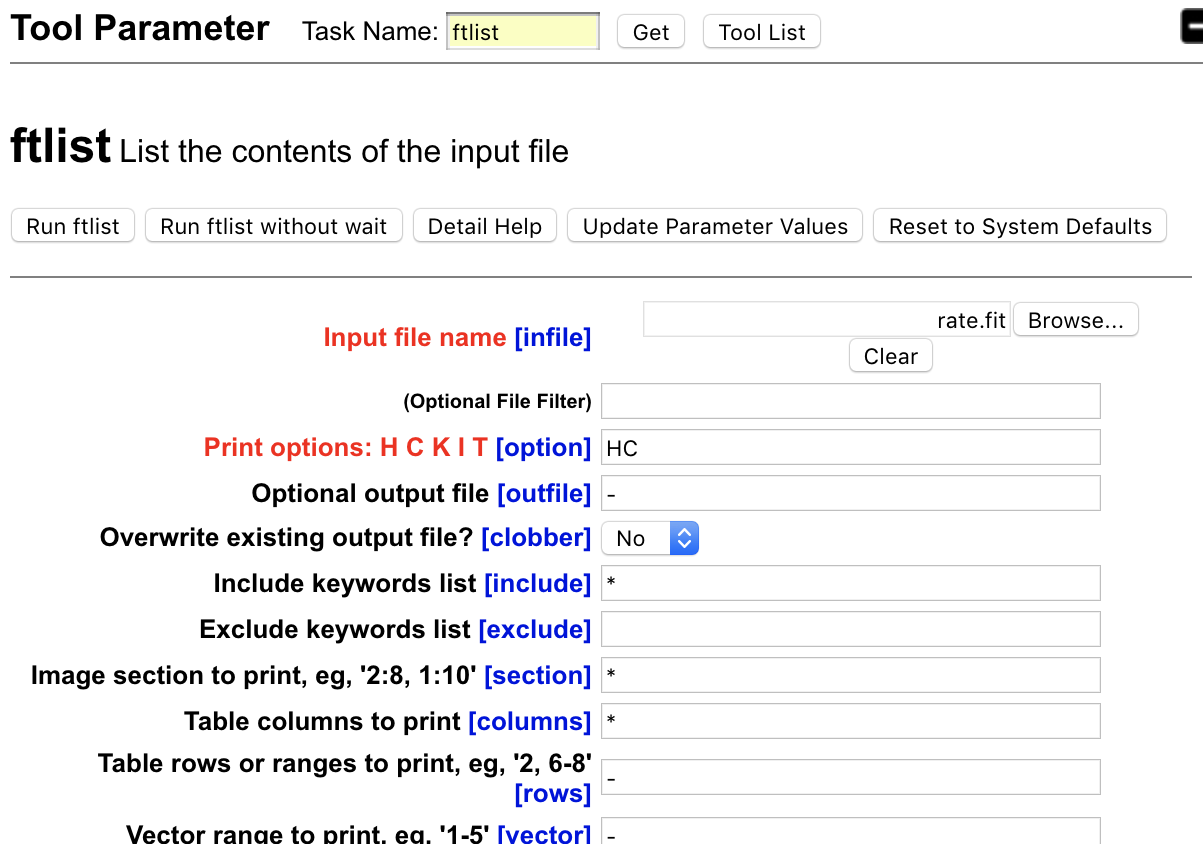
Update Other Parameter Values
Update
other parameter values to run the tool.
Run the tool
Click  to start
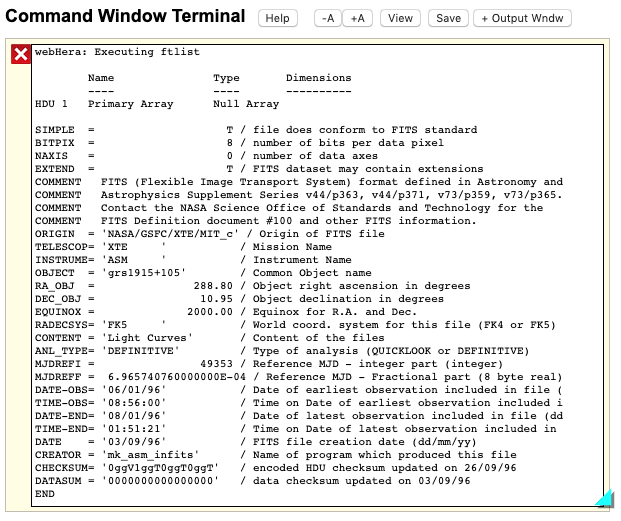
Check the output
Output
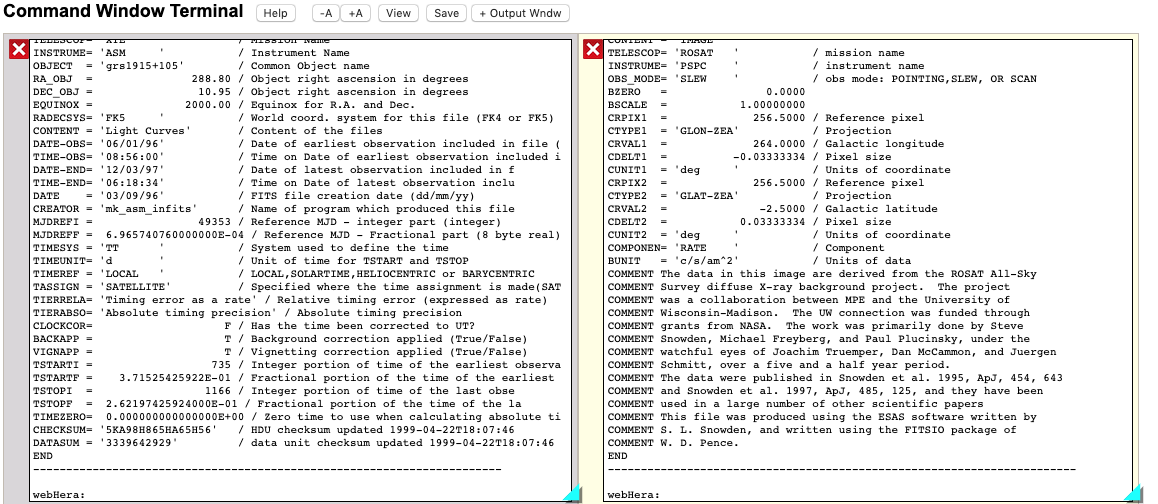
would be displayed in the Command Window Terminal.
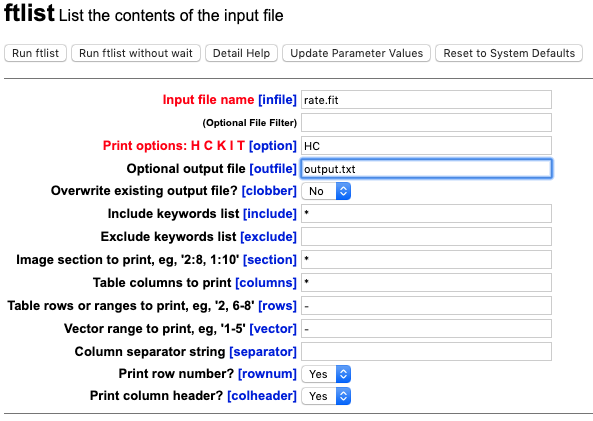
Same
as in example 1, but
adding “output.txt” as the output file.
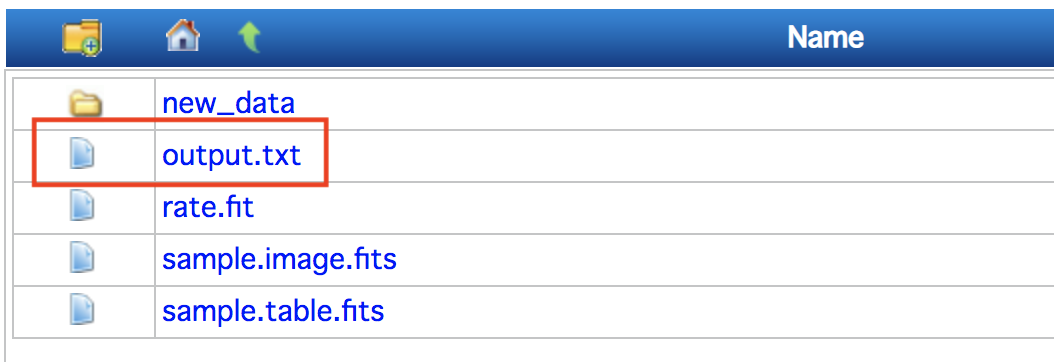
At end of operation, check user’s Hera
Data Directory (or use  to refresh the directory.) The panel now
updated with newly created file(s).
to refresh the directory.) The panel now
updated with newly created file(s).
3.
Third
example to run the task and display the result in a different output window
terminal.
Same as in example 1, but now create a
new output window terminal. The interface will automatic select the new output
window as the one task will send result to.
|
|
|
|


Run the task as in example, but with different input data file, the result
will be sent to new output window. User will have option to save result in each
output window to different text file.